As easy as A-B-C.
Set up A and B once. Run C each time you start a bot on a new stock.
Sightline Calibrate shows you what you ask for. Ask it for the most money and it will find settings that made the most money on your stock's past days. But bigger rewards come with bigger risks, and past days don't promise anything about today.
Our advice: pick a low risk level and use Safest first. Don't chase the biggest profit number. Ten good trades can be wiped out by one bad one.
Play the long game. Small, steady wins add up. All trading carries risk, and that never goes away.
Alert
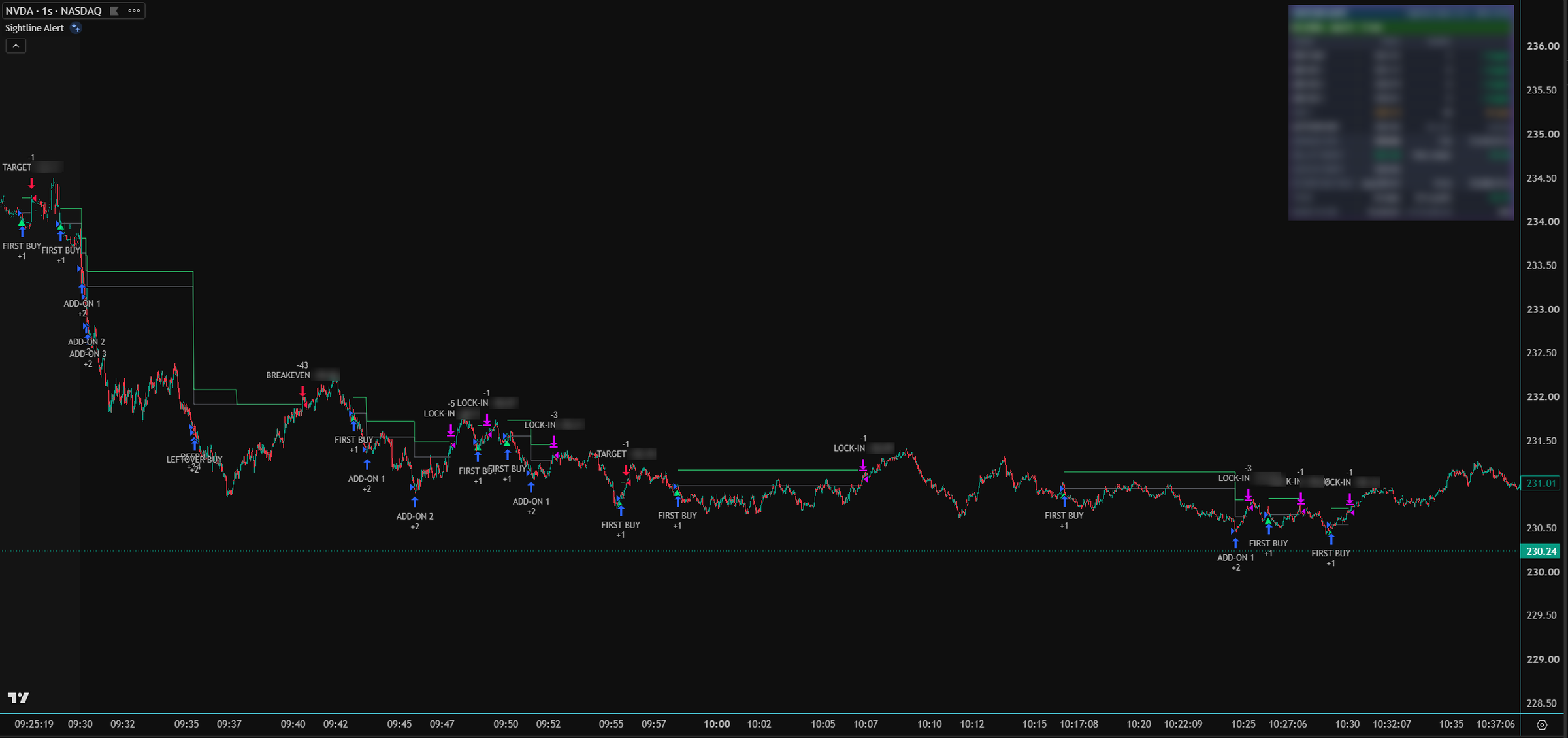
Sightline Alert is a script that runs in your own TradingView account. Each copy you run on a chart is one bot. Every plan lets you run as many bots as you like.*
- Subscribe and choose your plan. Your plan sets the most money each bot can use.
- Send us your TradingView username. We give your account access to the copy of Sightline Alert that matches your plan. Access is added by hand shortly after payment.
- Add Sightline Alert to your stock's chart in TradingView. That's your first bot.
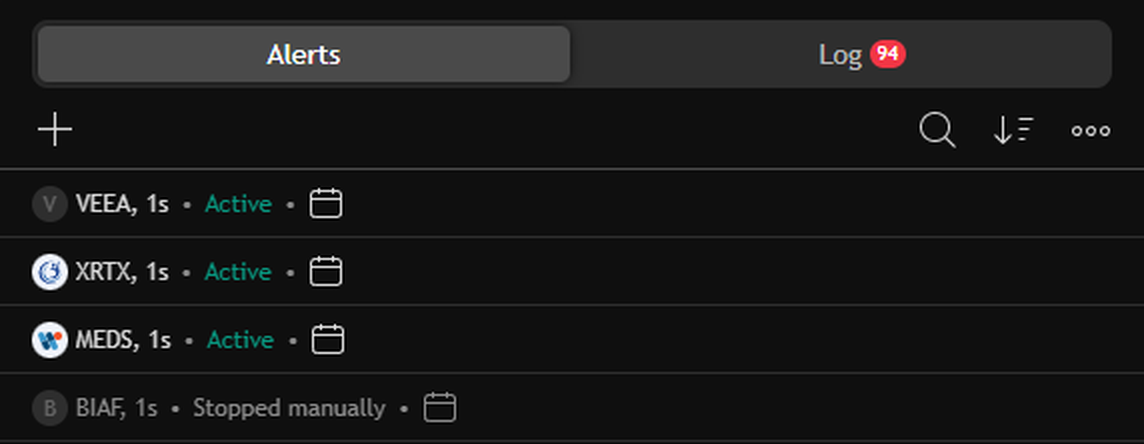
- Run more bots on more stocks. Any plan, as many bots as you like.*
*How many bots you can run at once depends on how many alerts your TradingView plan allows.
Bridge
OptionalBridge is a Windows program that places your bots' trades in TradeStation for you. It runs on your computer, not ours. One-time purchase for one computer.
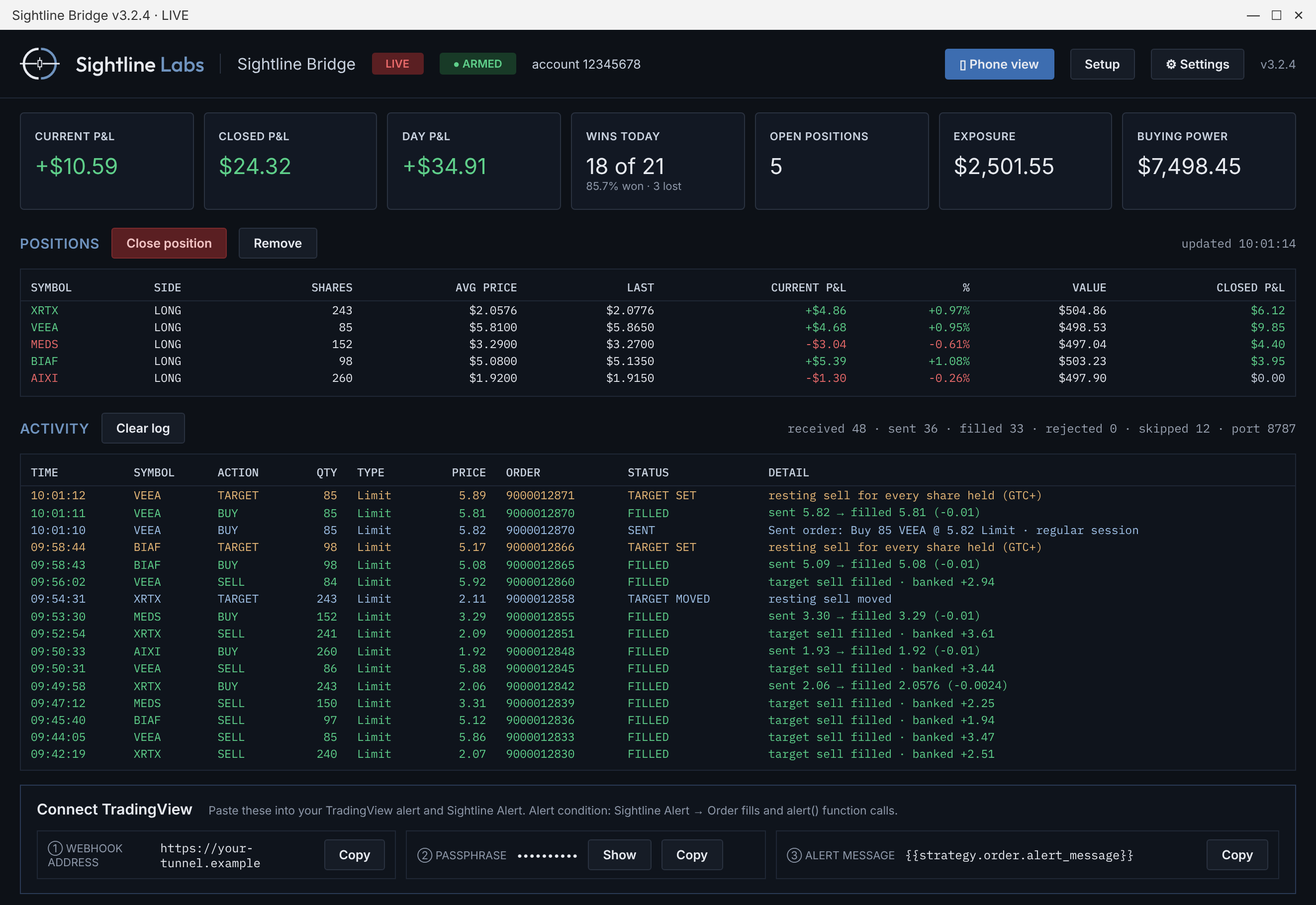
- Buy and download Bridge from the Bridge page. You need an active Sightline subscription.
- Install it on your Windows computer and connect it to your TradeStation account. Our step-by-step Bridge manual walks you through the whole setup, start to finish, including the tunnel.
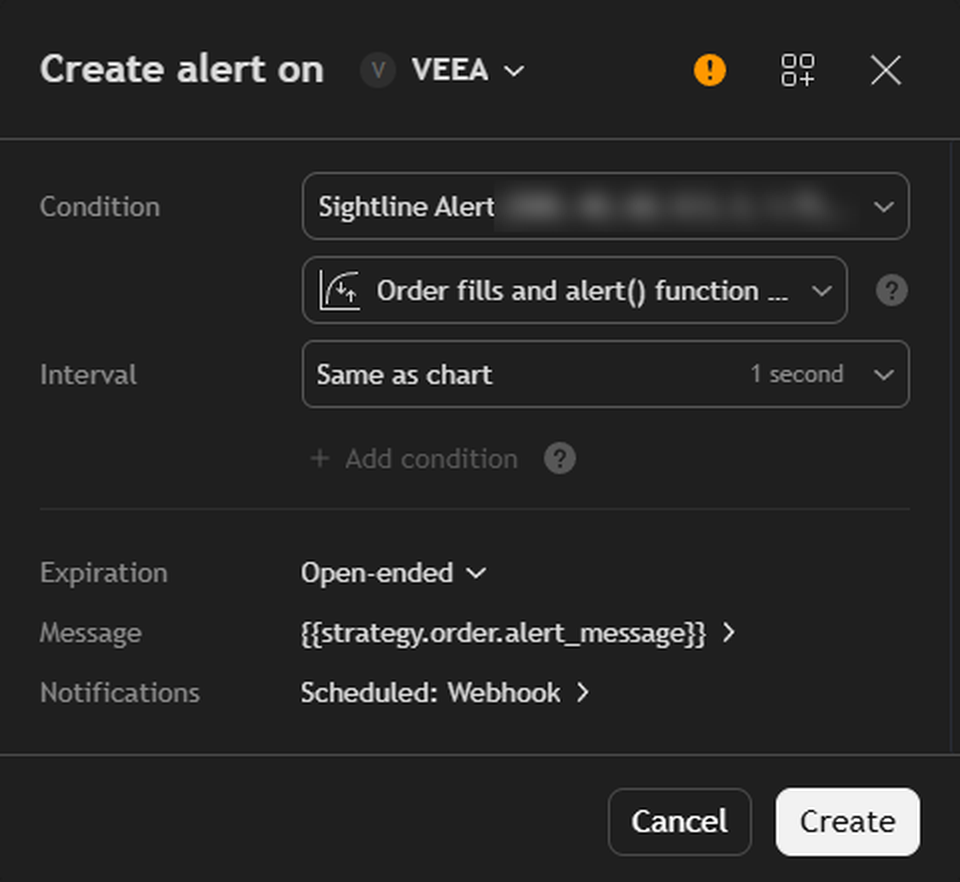
- Point your TradingView alerts at Bridge. When a bot signals, the alert goes through a tunnel you set up (ngrok, or your own such as a Cloudflare Tunnel) to Bridge on your computer, and your computer sends the order straight to TradeStation.
- Exits are set for you. When a buy goes in, Bridge also sends a limit sell at your take profit price. If you buy more shares yourself in TradeStation, Bridge updates that sell order to cover every share.
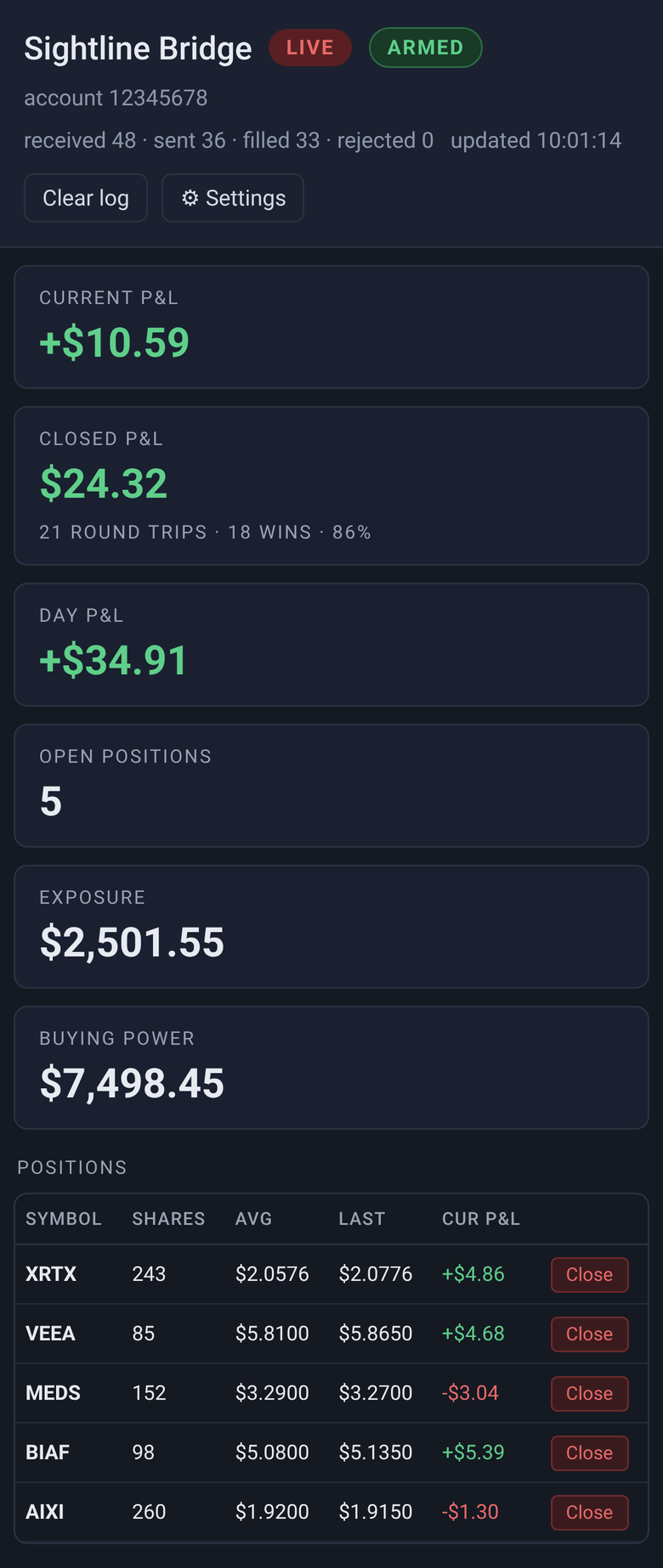
- Take it with you. Bridge's dashboard is on your computer. Scan its QR code to open Bridge on your phone, where you can see live trade stats, turn Bridge on or off, and close trades by hand.
Calibrate
Every stock moves differently. Calibrate studies your stock's price history to learn how it tends to move, then suggests settings for your bot.
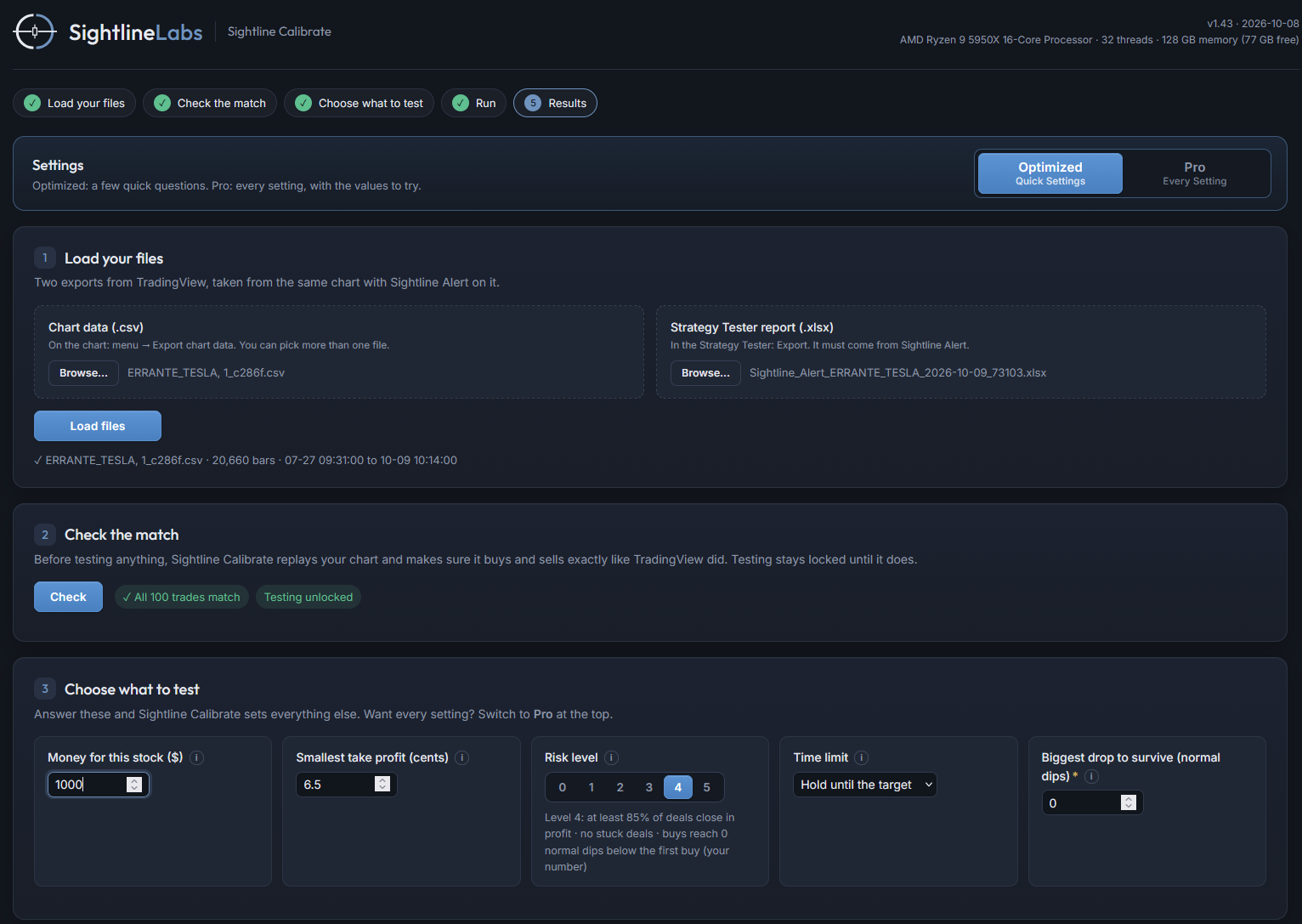
- Open your stock on TradingView with Sightline Alert on the chart.
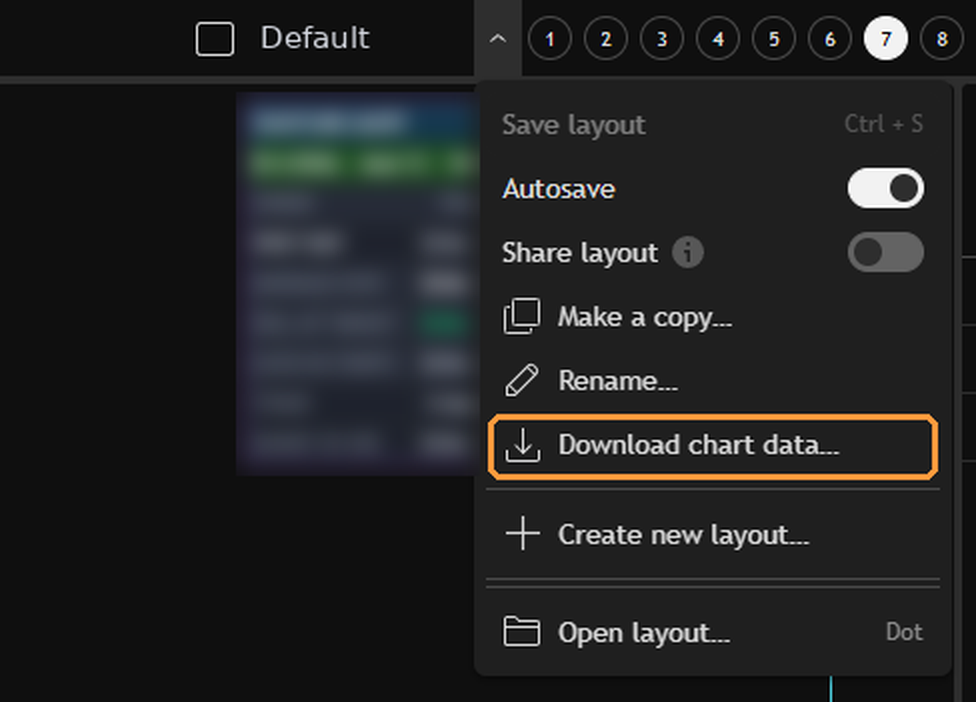
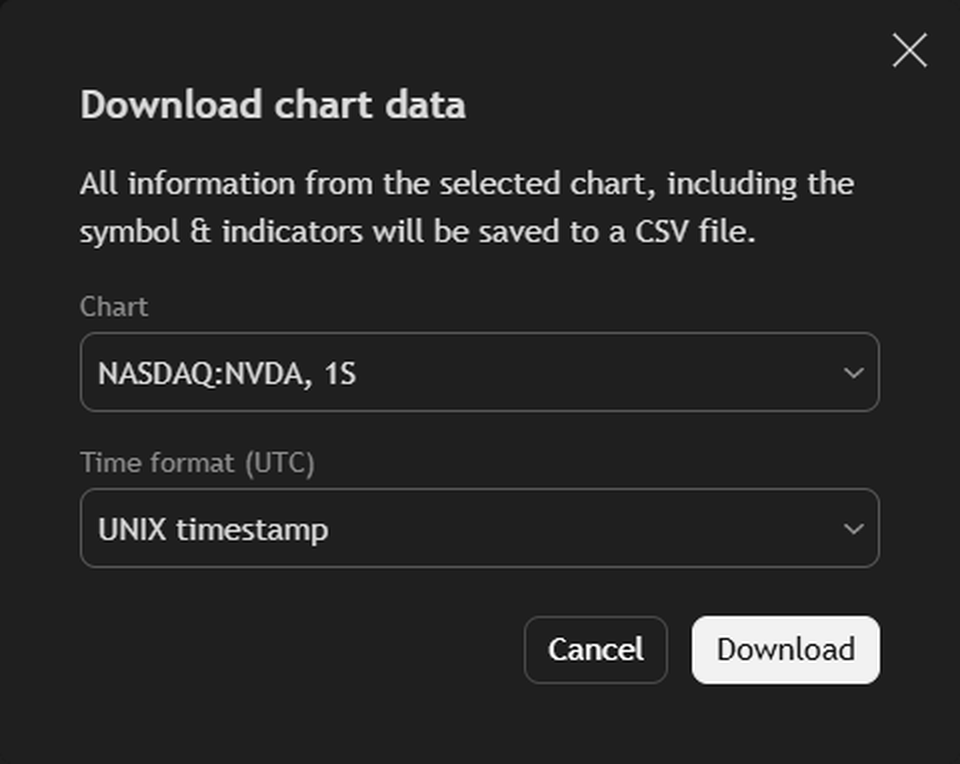
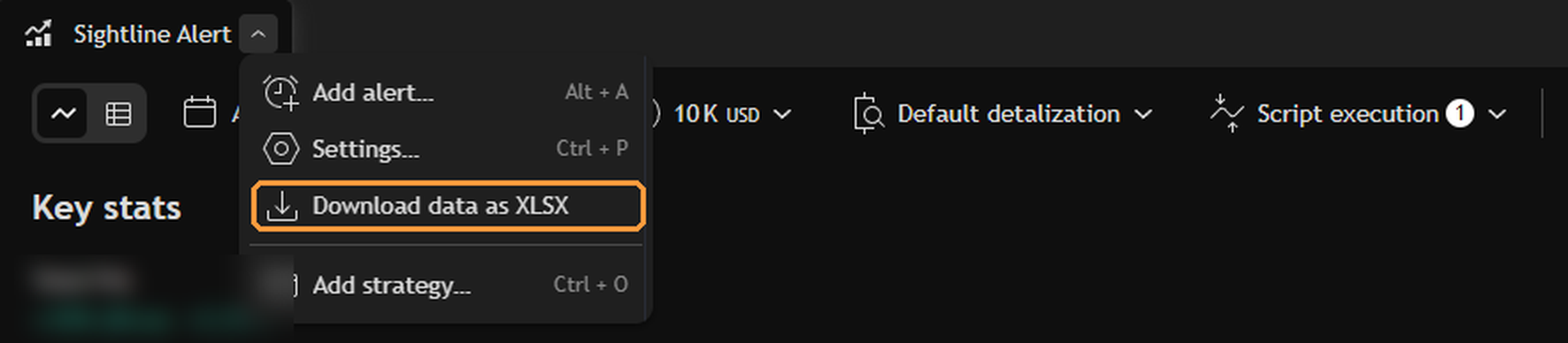
- Save two files from TradingView: the chart's price history and Sightline Alert's list of trades. Chart data: at the top right of TradingView, click the arrow next to your layout name, choose Download chart data, then click Download. Trade list: in the Strategy Tester panel at the bottom, click the arrow next to Sightline Alert and choose Download data as XLSX. You don't need to open either file; load them straight into Calibrate.
- Open Sightline Calibrate on this site and load both files.
- Press Check. Calibrate replays your chart and makes sure it trades the same way TradingView did. If it doesn't match, it tells you why.
- Choose how to search. Optimized: pick your risk level and Calibrate sets up the search for you. Pro: set every option yourself.
- Press Start. Results show up within seconds and keep coming as it runs. The starting choices are fine for your first run.
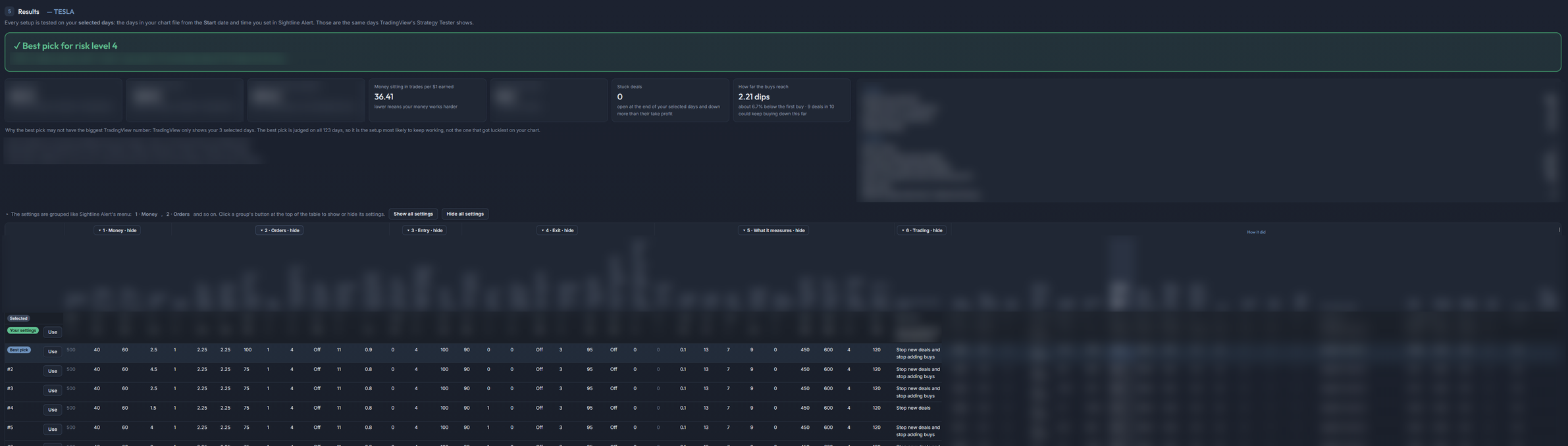
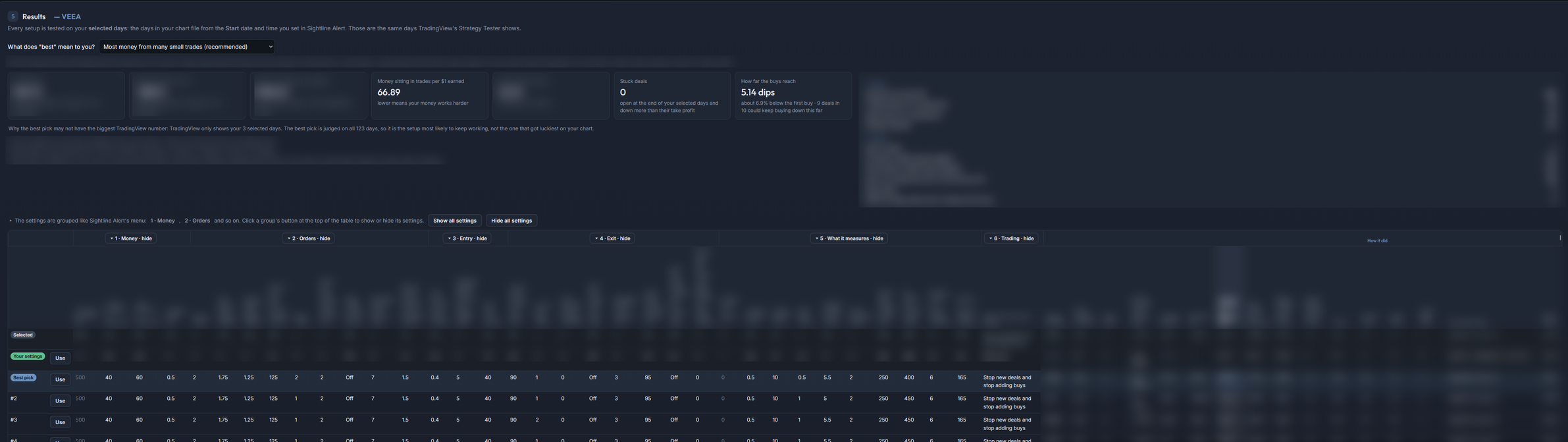
- Calibrate suggests the best settings for the options you chose, based on your stock's past prices. Copy that row into your bot's settings, top to bottom.
- The best pick isn't always the setup that would have made the most. It's the one that best fits the risk level you chose.
It finds your computer's processor and lets you choose how many threads to use and how high a priority to give it, so you can keep working while it runs.
Results are simulated from past prices. They don't reflect real trading and don't predict future results.
Saving your two files
You're never without your bot.
- We add the Sightline Alert copy for your new plan first.
- Set up your alerts again on the new copy. A TradingView alert belongs to one script, so alerts on the old copy don't move across.
- We remove the old copy for you. Moving to a smaller plan removes the higher-limit copy.
Every click, shown.
Step-by-step manuals with a picture of every screen. Subscribers can open them from their account.
Software for everyday traders.
Questions? [email protected]